

Navigating Canvas: Sixth Grade
Video transcript
This guide is a basic navigation of Canvas for sixth grade.
After you have logged in, click on Canvas. Here you will be brought to your dashboard. For easier navigation, click the three dots to change the view from list view to card view. Now click on your teacher's name. This is how you get to your classroom page.
You can see your classes organized by day: Monday, Tuesday, Wednesday, Thursday, and Friday. Each day has a different agenda.
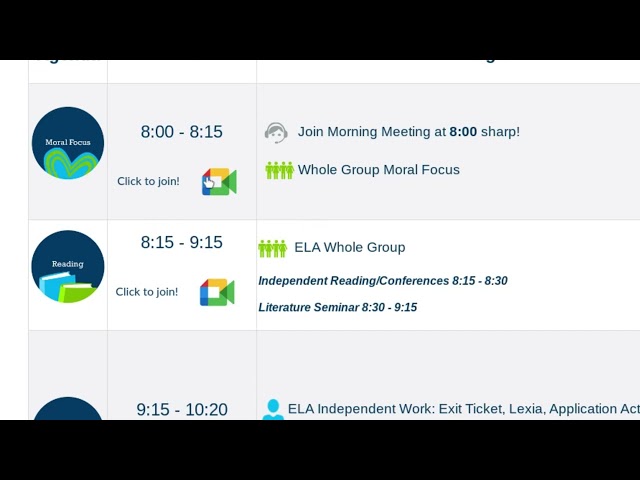
Let's click on Tuesday. If we scroll past the announcements, we can see our agenda for the day. At the top of the agenda is our first class of the day. It is Moral Focus from 8:00 to 8:15. To join the Moral Focus meeting, click on the Meet Now button and you will be brought to your class's Google Meet.
Next is reading from 8:15 to 10:30. This teacher has independent reading or conferences from 8:15 to 8:30, and a whole class meeting from 8:30 to 9:15.
Let's say it's 12:10 and you just finished your lunch break. What class will you go to next, and where do you click to join them? If you said whole group math and wanted to click on the Google Meet button, you would be correct.
Next, let's check out our assignments for the day by clicking on the Modules tab. Our modules, or assignments, are organized by day. Here you can see Wednesday has both your English and science assignments for the day.
Let's check out our assignment. Clicking on the assignment will bring us to the assignment page. The subject is Moral Focus and the topic is Coretta Scott King. Here you can see an introduction to the assignment, "I Can" statements, and directions about how to turn the assignment in.
All right, it's the end of the day and you would like to see what's coming up tomorrow. We'll click on the home button to bring us back to our homepage.